

Manager
How do I give my cleaners the property’s codes and access details?
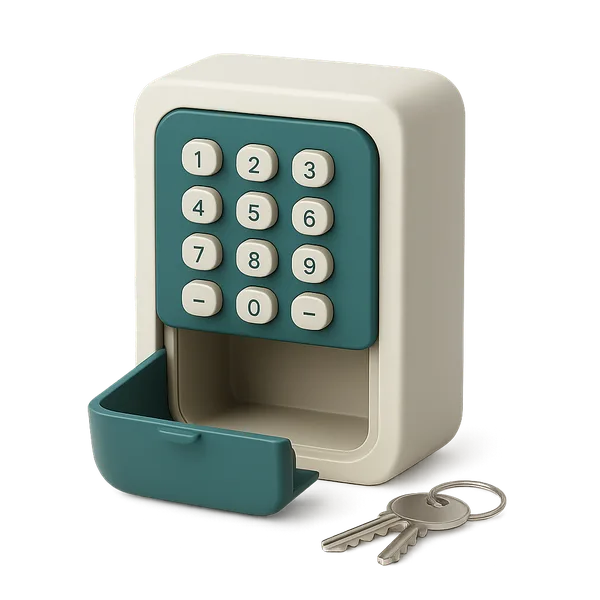
On the property page, tap "Access", tick the access details, then say when the cleaner sees them: "Before arriving" (parking, building, video link) or "At the door" (codes, key box, Wi-Fi). Fill them in and save.
Where to tapPropertiesAccessAdd access detailsWhen should the cleaner see it?Save
Step by step
- 1On the property page, tap Access.
- 2Tap Add access details (or the round + button at the top right).
- 3Tick one or more types (parking, building, link, entry code, key box, Wi-Fi…), then tap "Add 2 details".
- 4When should the cleaner see it? Tap Before arriving for what helps find the property, At the door for what opens the door.
- 5Fill in each one. A "Link" takes a web address (route video, map) and an optional title. For the codes, tap the round + button and choose At the door.
- 6The two tabs appear, each with its number of access details. Tap Save.
- 7The access details are saved: only cleaners assigned to this property see them, on their missions.
Good to know
- The cleaner sees Before arriving as soon as they have accepted the cleaning: on Get to the property, the Directions to the property row, under the address.
- At the door only shows after I've arrived, and each view is logged.
- The tabs only appear when each side has at least one access detail. Those you had already entered are all under At the door.
- The cross on an access detail removes it. "Link" and "Other" can be added several times, with your own label.
Words in this tutorial
Checked on November 22, 2026
 No access details yet